
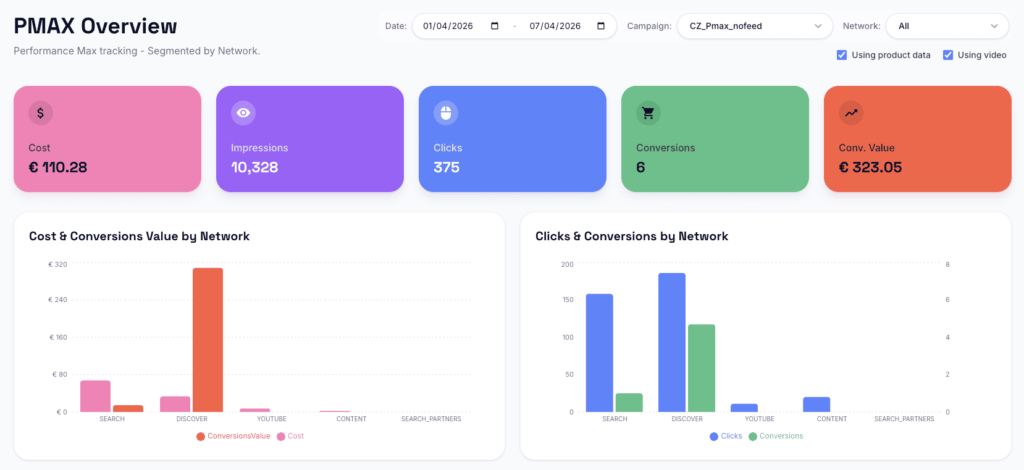
The marketing world is constantly changing, and what was true yesterday may not be true today. How do you manage this chaos and stay on top of it? How to effectively analyze the benefit of the changes made in the advertising system account and detect mistakes in time? Imagine a script that presents you with five key metrics in five clear graphs, all built on 180 days of data. And the best part? This data is broken down by the platforms where the ad is served.
This script is exceptional because it’s easy to deploy, and its outputs are easily visualized in Looker. You can see the breakdown down to such granularity as days, weeks, or months.
It allows us to analyze better the impact of changes, such as adding a new ad and adjusting tROAS and budget. We can immediately detect bugs or errors made in campaigns. As a bonus, we can track the impact on pmax if we make adjustments in other campaigns.
Are you curious about how and where we use this script? Watch our video:
How to set up a PMAX report:
Step 1.
Get the script here, which includes the “Template spreadsheet PMAX”. This template will serve as a tool for easy setup.

Make a copy of the spreadsheet, which you will find in the file you get from the link.

Step 2.
Fill in the Config spreadsheet.
The Config spreadsheet contains four columns that we need to fill in:
Column A (Client): It is used to identify the client.
Column B (Google Ads Account): Here you need to enter the Google Ads account id, i.e. in the form “123-456-7890”.
Column C (Days back): Defines the number of days for which you want to pull data. The recommended value is 180.
You are filling in data for 1 client only.
Step 3.
Get your free script here and insert it into Google Ads.
We insert the script at the MCC account level, not at the client account level.
Google Ads > Tools and Settings > Bulk Actions > Scripts

Click on “+” > New script
Step 4.
On line 8 of the script, insert the URL of the spreadsheet (created in step 1.) in the following format: https://docs.google.com/spreadsheets/d/xxxxxxxxxxxxxxxxx/edit
Step 5.
Save the script and run it.
Step 6.
Set the frequency of how often and when to run the script.
Step 7.
Open the Web Interface at the link.
Open the page.
Paste the URL of the spreadsheet created in step 1.
Click Load data.

